Vulcan® Plugin For Adobe Illustrator®
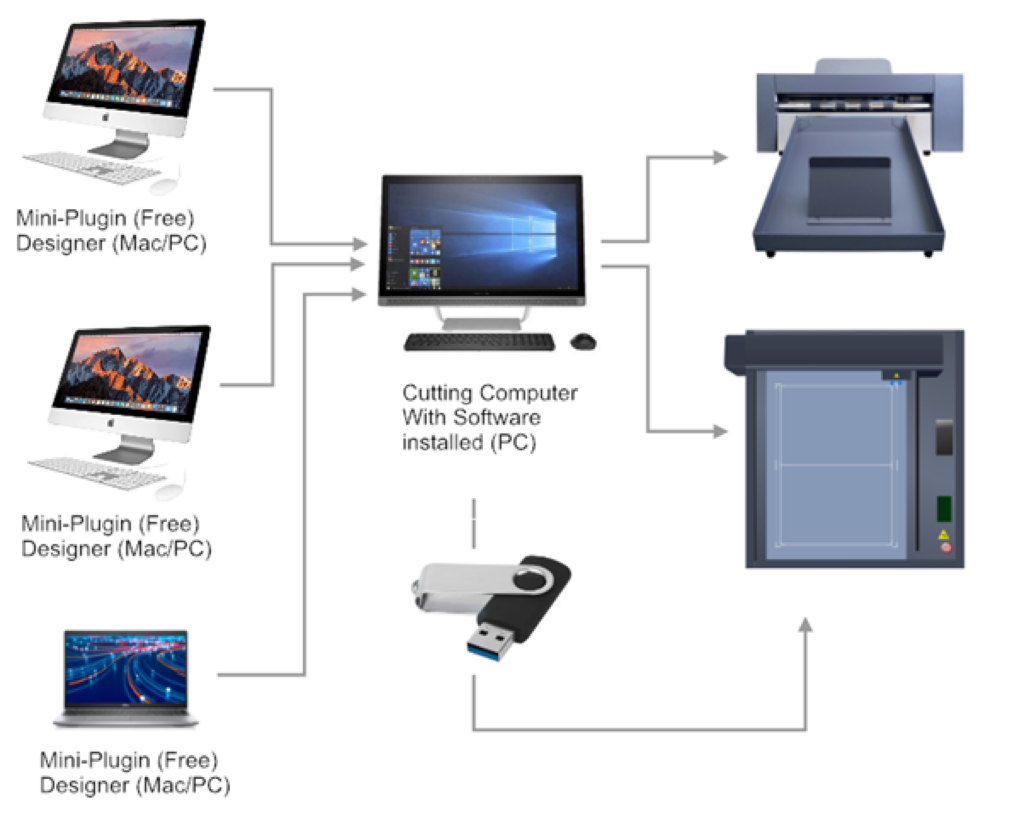
The mini-plugin can be freely distributed to external designers who use Adobe Illustrator®, so that they can create the artwork directly in Adobe Illustrator®. The plugin allows you to add the alignment marks and QR code, and then save the cutting data to send to the computer that runs the machine to perform the cutting.
The Vulcan® is a mini-plugin to allow designers to create artwork on Mac or PC within Adobe Illustrator®, without needing to have the cutting software installed on their computer. This allows designers to create all the designing and printing in Adobe Illustrator.
When the job is ready, the mini-plugin will allow users to save the cutting data, so it can be emailed/copied onto USB stick/saved on network so that it is available for the users choice of cutting program.
The Vulcan® mini-plugin will be free to use, and comes with an instruction guide Mac and PC users to allow for Vulcan® customers to send the required information to their designers, without them needing to have a software licence or additional copy.
The concept of the Vulcan® mini-plugin can also be extended to work with a batch module that monitors a hot folder on the network, and when a job is exported from the mini-plugin, it can automatically create the PLT file in a specified folder for automatic job cutting.
Still have questions? Watch a video that shows the workflow of the Vulcan® Plugin.
Vulcan® Plugin Installation Instructions
Download the Vulcan® Adobe Illustrator plugin from here:
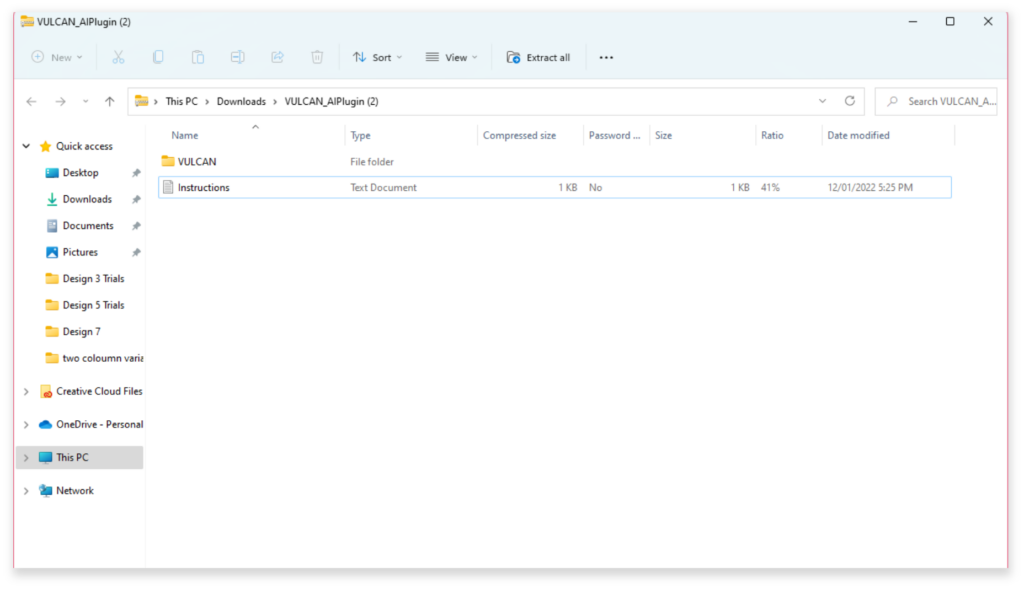
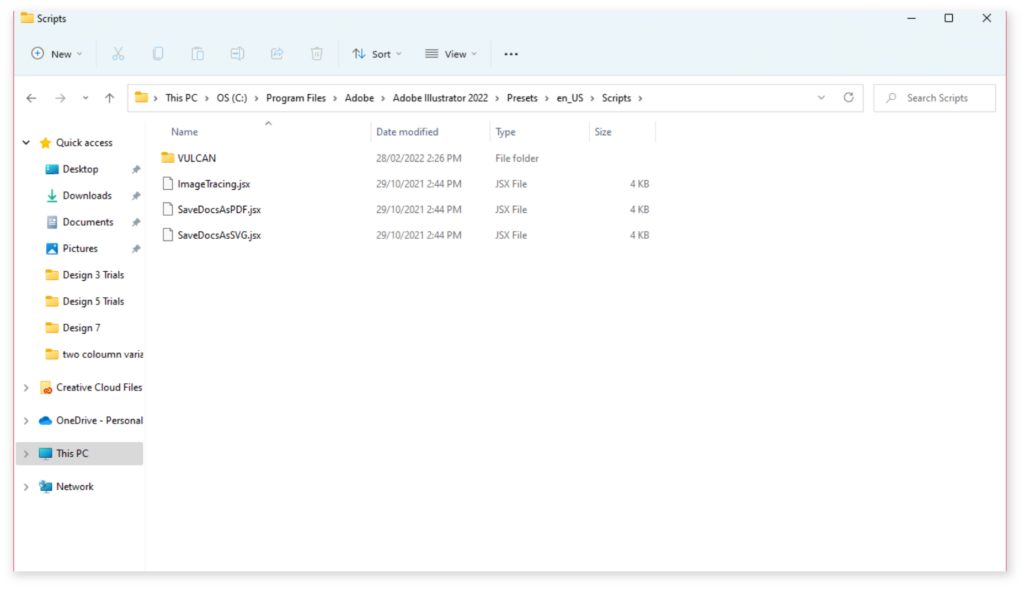
After unzipping the file onto your computer, copy the “VULCAN” folder to the following location on your computer:
Mac OSX: Applications / Adobe Illustrator [vers.] / Presets.localized / en_GB / Scripts
(note: [vers.] corresponds to the version of illustrator that is installed.)
Windows: C:\Program Files\Adobe\Adobe Illustrator [vers.] (64 Bit)\Presets\en_GB\Scripts\.
(note: if your computer is 32 bit, go to “Program Files (x86)” instead of “Program Files”